
For Mac
Wireless photo and video import from your Sony camera to your Mac.
Send shots straight to Apple Photos or a folder, card still in the camera.
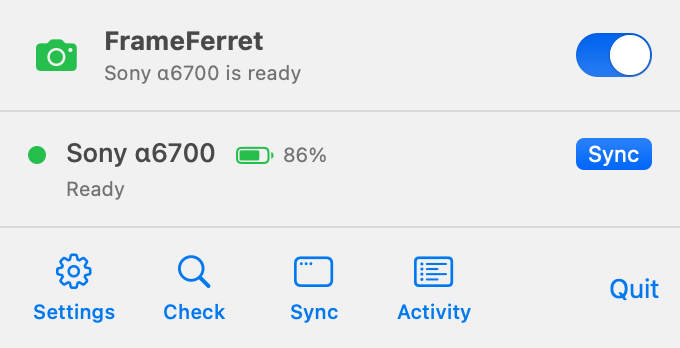
Apple Photos or a folder
Photos and videos go to Apple Photos, or to a folder grouped by capture date.
- Apple Photos. Photos and videos go into your library.
- A folder. Original files are saved in folders grouped by capture date.
Choose one destination in Settings. FrameFerret keeps a separate import history for each destination.
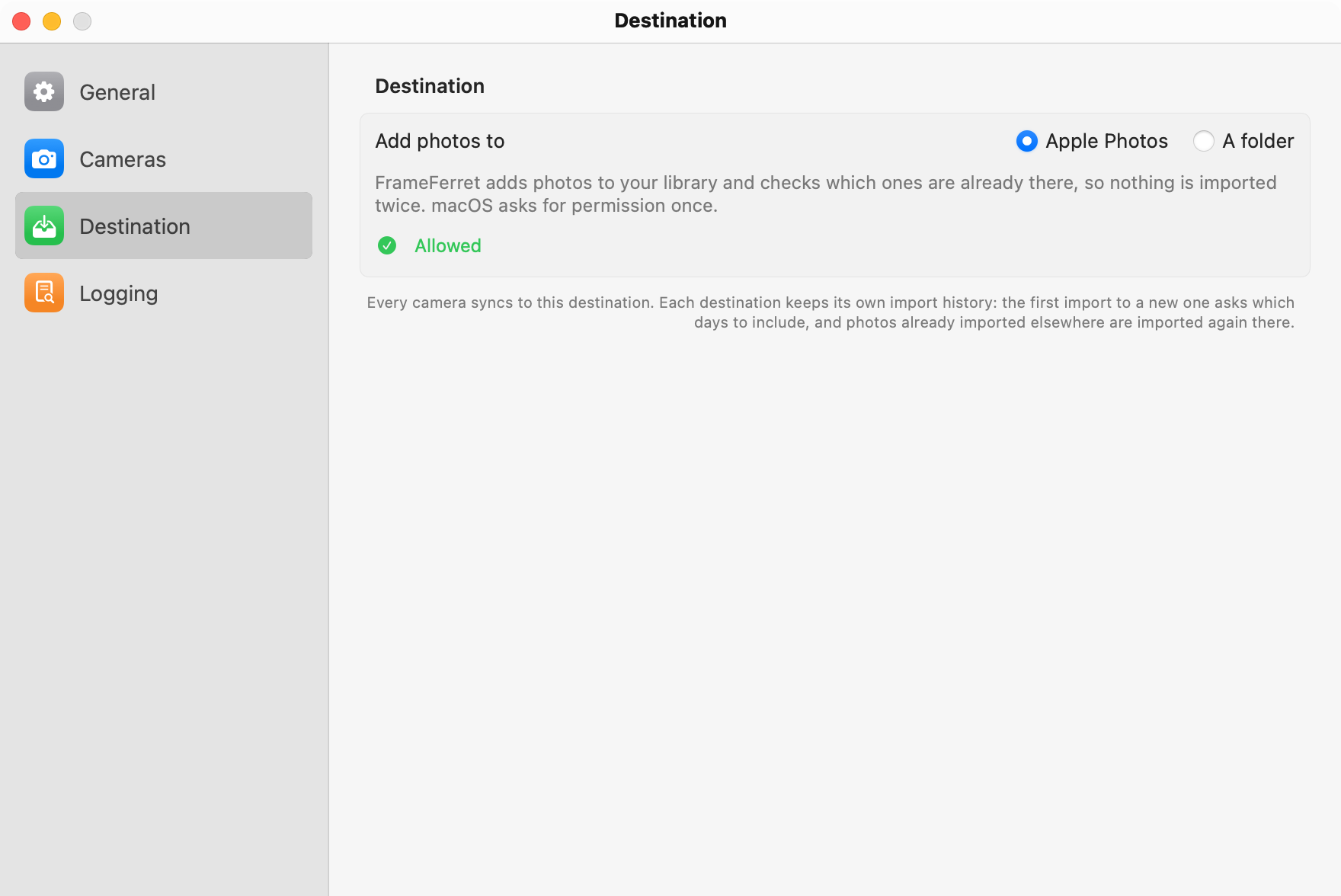
The days you choose
Your first import lets you choose everything, a starting date, or individual days. Bring in a recent trip or an older collection without selecting each file.
FrameFerret records completed imports and checks the destination for existing files. This reduces repeated transfers and duplicate copies. If a match is uncertain, FrameFerret imports the file and marks it for review.
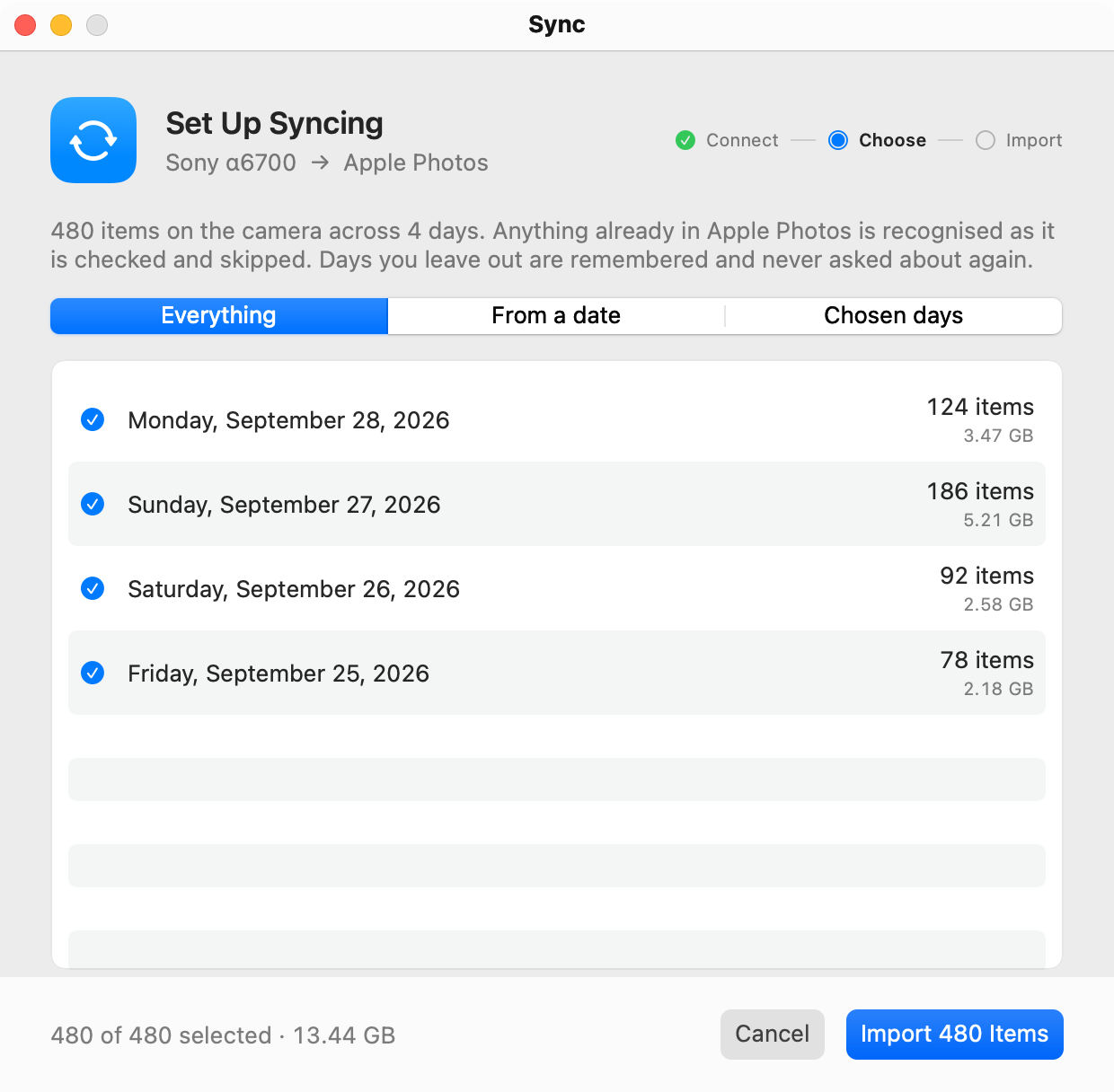
RAW, JPEG, HEIF, and video
FrameFerret supports RAW, JPEG, and HEIF photos, with an option to include videos.
In Apple Photos, you can keep a RAW file and its JPEG or HEIF companion together as one photo. You can also import them separately. When you choose a folder, FrameFerret saves both files separately.
FrameFerret keeps the originals on the camera’s memory card. When it saves to a folder, it preserves existing files.
Sync from the menu bar
The menu bar has Check, Sync, and Activity.
- Check camera availability. See which configured cameras are ready to connect.
- Start a sync. Use the Sync control when you want to import new files.
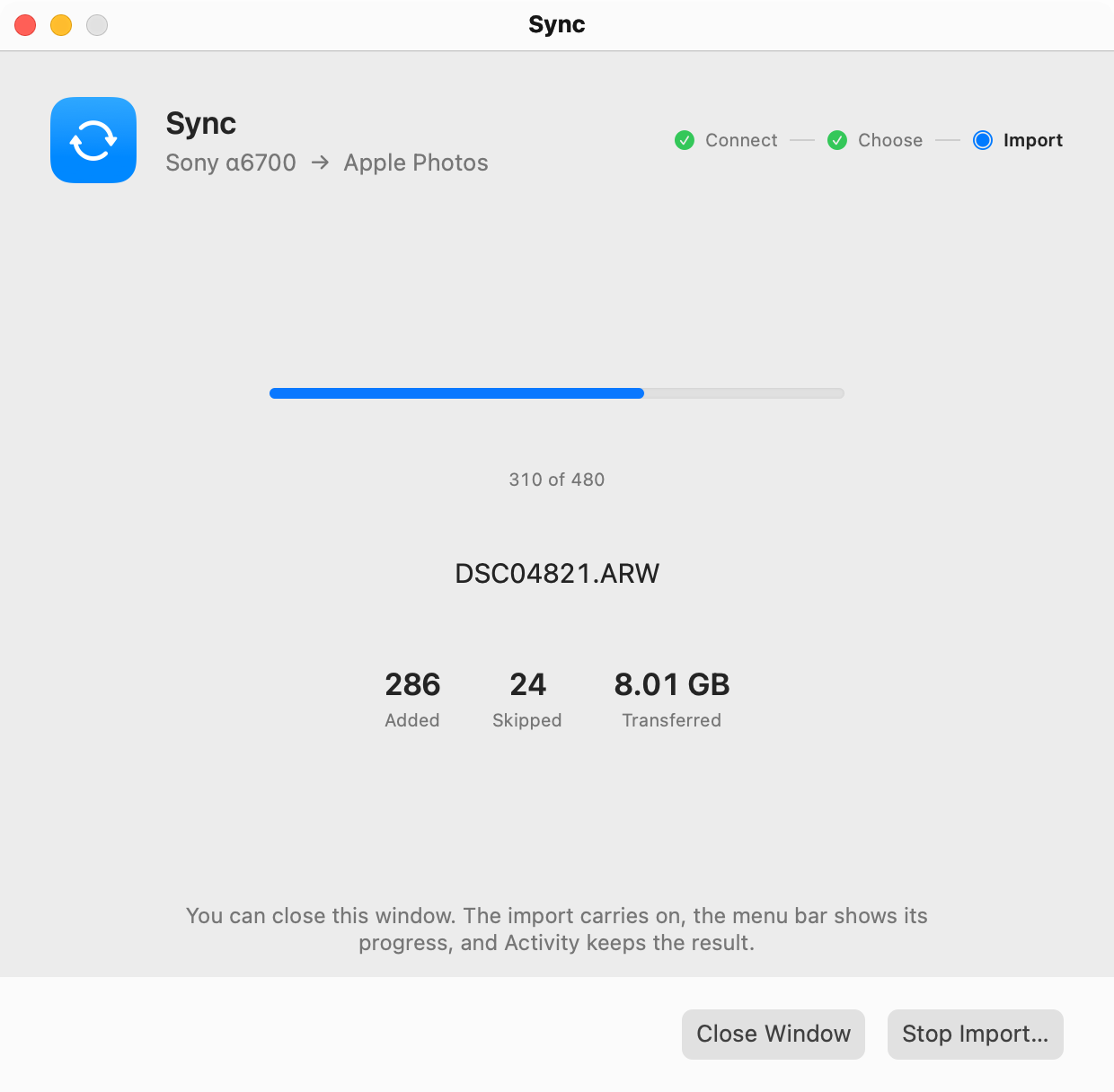
- Follow progress. See the current file and overall progress while an import runs.
- Continue working. Close the import window while the transfer continues.
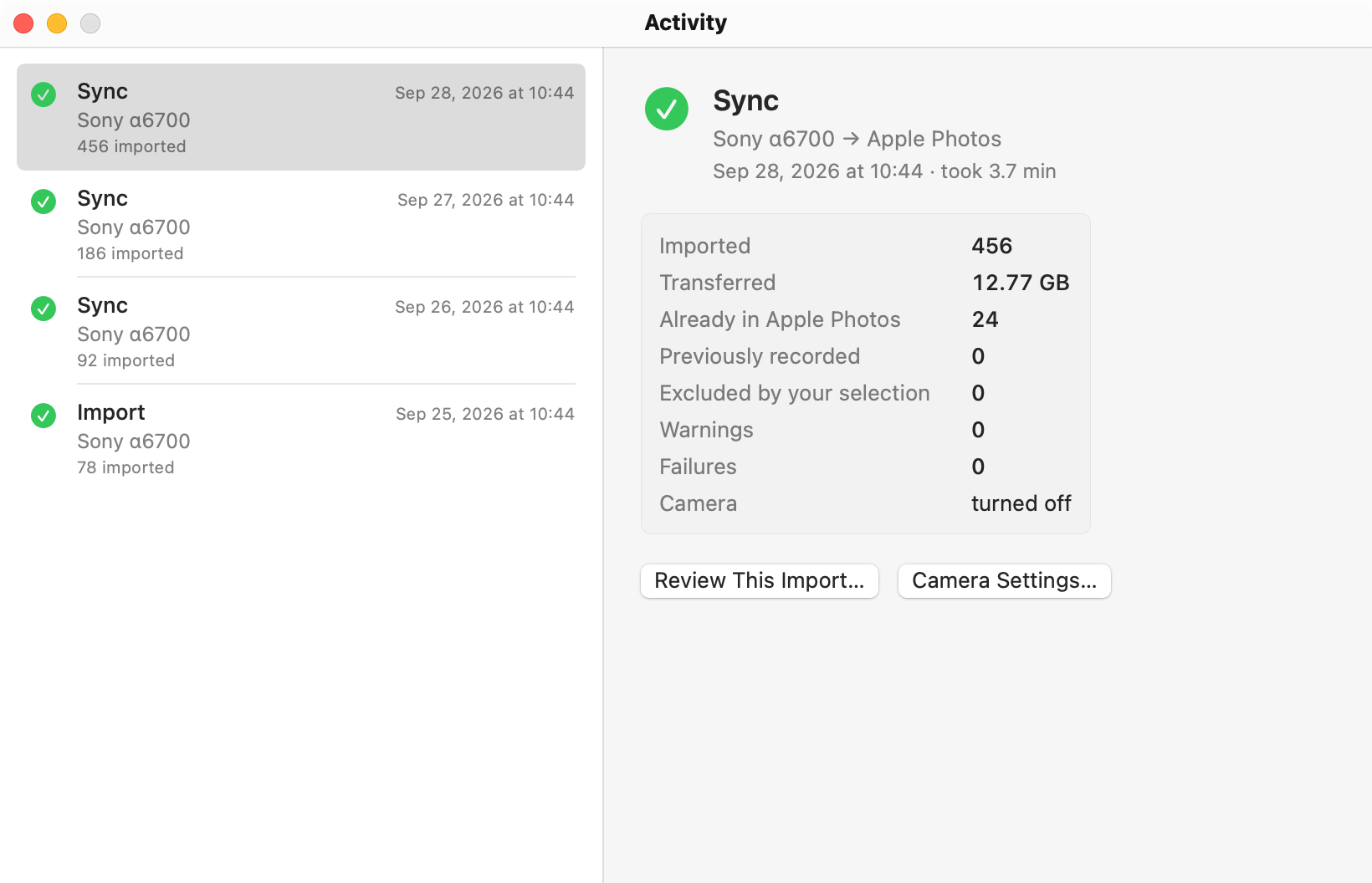
- Review activity. Check completed imports, skipped files, and errors in the Activity window.
You can configure more than one camera. FrameFerret processes imports one at a time.
The camera can turn off
FrameFerret can turn off a compatible camera when an import finishes. Enable this option for each camera in Settings. The completion message confirms the result or reminds you to turn the camera off.
What you need
- A Mac with macOS 15.6 or later.
- A compatible Sony camera on the same local network as the Mac.
- PC Remote and access authentication enabled on the camera.
- Permission for FrameFerret to use the local network and the chosen destination.
The app includes camera setup choices for Sony α6700, α7 IV, α7C II, α7CR, α7S III, α1, and ZV-E1. The Sony α6700 is the main development camera. Camera features depend on the model and firmware.
Platforms
Mac
Where to get it
Mac App Store. Apple reviews every release and your device keeps the app up to date.
TestFlight. Install Apple’s free TestFlight app, then open the beta link on the Mac you want to test on.
Download for Mac. Unzip, drag the app into Applications, and open it. The build is signed with our Apple Developer ID and notarized by Apple, so macOS checks it before it first runs.